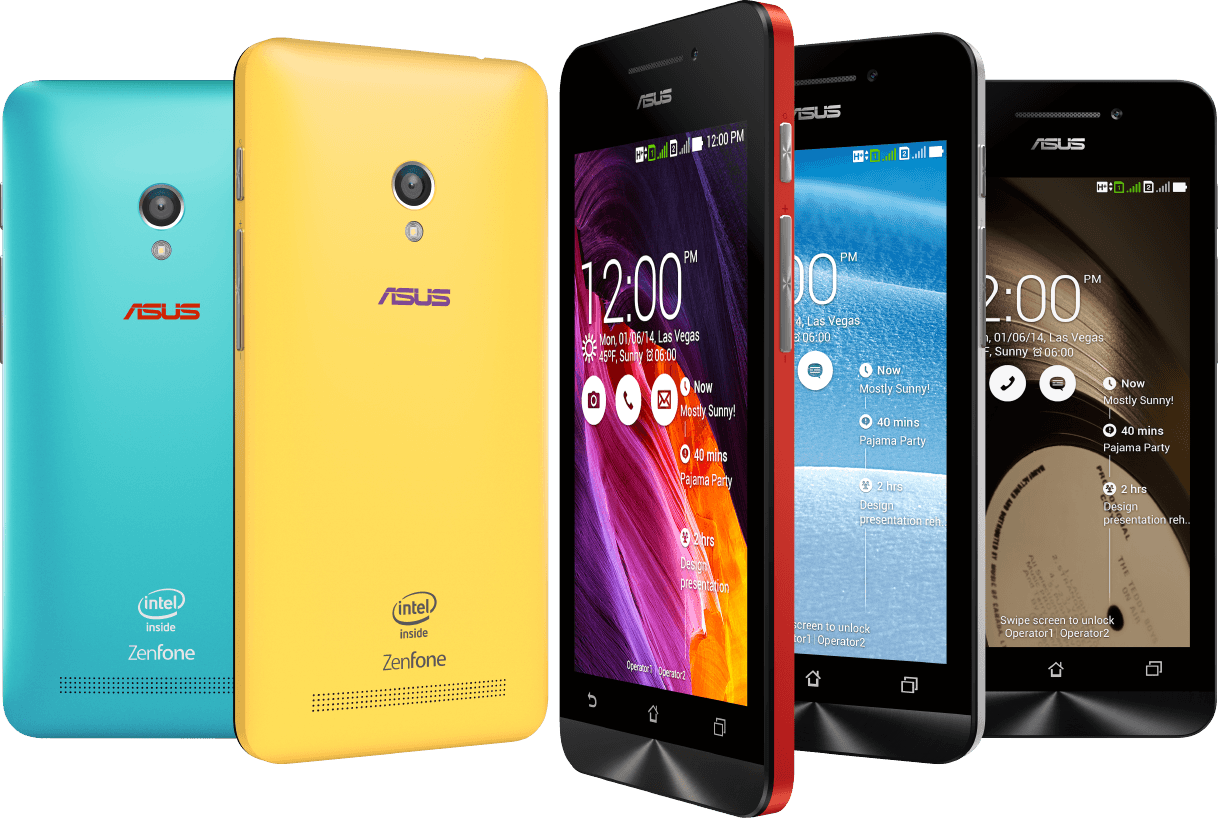
Root Zenfone, especially root ASUS Zenfone will bring you to experience the deepest customization for new product lines this Asus. You need to comply with the guidelines below to avoid the risk of Zenfone with your machine.
Supported Models
ZenFone 6 (T00G / Z002)
PadFone S (T00N)
Fonepad Note 6 ME560CG (K00G) v11.2.1.22 [factory reset before rooting]
ZenFone 5 LTE (T00P)
MeMO Pad 7 ME176C / ME176CX (K013)
MeMO Pad 8 ME181C (K011)
Fonepad 7 FE375CG (K019)
Transformer Pad TF103C (K010)
Transformer Pad TF303CL (K014)
Fonepad 7 FE170CG (K012)
To Be Confirmed Models
PadFone Mini (T00E)
Transformer Pad TF103CG (K018)
Not Supported Models
Direct Download Link
ZenFone 5 (T00F / T00J)
MeMO Pad 7 ME170C (K017)
MeMO Pad 7 ME70C (K01A)
ZenFone 4 (T00I / T00Q)
How to Root
Install the “Root Zenfone” Apk (make sure you have already checked “Unknown sources” under Security settings)
Open the app
After Root Zenfone application starts, hit the “OK” button.
Now choose “SuperSU (by Chainfire)”
Hit the “OK I know, please root !” button (make sure WiFi and Mobile Data already turned off)
After finished the rooting process it will ask for REBOOT, just do it.
How to Unroot
Open the app
Tap on “Unroot”
Follow the instructions
NOTE: Rooting your phone can avoid your warranty. Any damage during the rooting process no one will be the responsible.
BlueStacks App Player is a versatile program that bridges the gap between mobile and desktop by allowing users to run their favorite Android apps on their Windows or Mac OS X devices. An innovative "Cloud Connect" feature allows you to push apps from your Android device to Bluestacks, and vice versa. First released to the public in 2011, the program has continued to grow, and is currently free for download in its current beta form. Want to get a taste of Android on your desktop? Here's how to set up BlueStacks, as well as a rundown of some of its controls and interesting features. Be sure to check out the BlueStacks review from our friends at LAPTOP.
BlueStacks App Player is available for Windows and OSX computers, and is a quick, compact install to your boot drive (there's no option in the installer to go to a different drive or directory). The only choice you make during the install is whether to allow the program to make notifications, as well as the option to opt in to BlueStacks Spotlight, which holds daily app giveaways.
2. The Home Screen
Once installed, BlueStacks will boot up to its Home Screen, where you can access your installed apps, look up apps in the "Top Charts," search for apps, and access settings. You can use the mouse for basic touch controls here, with clicking and holding to simulate basic tap and swipe controls. From here, we'll need to do a bit more setup before you can get around to installing apps. You'll need to set up access to the Google Play store and associate a Google Account with BlueStacks.
3. Setting up the App Store
With BlueStacks installed, the first thing you'll want to do is associate a Google Account so that you can get onto the Google Play store and download apps. Go to "My Apps" and click on "1-Click Sync Setup," which will bring up a wizard interface that will guide you through the process. Basically, you'll need to either create a Google account, or sign in with your existing one.
4. Setting up BlueStacks Cloud Connect
An optional step for users with an Android smartphone or tablet is to set up BlueStacks Cloud Connect, an app that allows you to push apps from your Android device to BlueStacks, and vice versa. Download Cloud Connect for your Android device, and then go to the Settings button on BlueStacks and click on "Cloud Connect".
If you have an Android phone, input an email address as well as your phone number. You will then receive instructions via email and SMS on how to connect your phone to Bluestacks, push apps, and sync SMS.
If you're running an Android tablet, you instead just use an email address to synch BlueStacks with your device. After registering BlueStacks Cloud Connect, you should receive an email containing a PIN number, which you input into the Cloud Connect app.
You should now be able to push apps between your device and BlueStacks. You're essentially istalling the same app on your desktop and mobile device, without syncing app data (such as login credentials or game progress). Still, it's an easy way to copy apps from your device to BlueStacks, or vice versa.
5. Installing & Running Apps
If you're not going to sync apps to and from your Android device, you can just use the built in App Search to search for and install apps from Google Play, Amazon, or 1Mobile.
It may seem confusing at first, but BlueStacks won't let you get to its three built-in app markets directly. You'll need to go through the App Search button. Type in the name of the app you're looking for, and it will search 1Mobile, Amazon, and Google Play for matches, and give you the option to install apps from any of the above three stores.
Once you've accessed one of the three app stores, you can then navigate that store. Within Google Play, for instance, you can take advantage of the store's search and other features.
Once you return to the Home Screen, your newly installed app should be ready to run. BlueStacks can run an impressive variety of apps from social networking tools and multimedia apps to games. However, BlueStacks won't run everything, so expect a little trial and error for compatibility.
6. Controls & Settings
You should now have everything you need to install and run apps from BlueStacks, so we'll finish up with some extra notes on in-app controls, as well as settings. Unless you happen to be running a touchscreen rig or a Windows 8 tablet, you're going to need some way to approximate pinch to zoom, as well as tilt controls.
Pinch to Zoom: Control +, or Control -
Tilt Controls: 'Z' or 'X' can be used to simulate tilting a device left or right.
BlueStacks supports the use of gamepad controls for many apps, which will be a godsend for users looking to play Android games on a PC. Plug in your controller, and Bluestacks should inform you if a particular app supports a controller.
Finally, the Settings menu (gear icon) contains assorted system settings for language, keyboard settings, contacts and account management, and an app manager for uninstalling applications and setting their default sizes.
There's your quick visual tour of the BlueStacks App Player. It may not run every Android app perfectly, but BlueStacks puts you just a mouse click away from thousands of compelling choices.
ClockWorkMod Recovery is important for Galaxy Note 10.1 users if they want to flash the latest custom ROMs and root their device. The credit for this particular port goes to XDA Developers member zedomax. Another member by the name of Chainfire also added the Galaxy Note 10.1 to the compatible device list, which means the addition of a binary flash counter isn’t a worry anymore.
Before proceeding to the rooting and ClockworkMod Recovery guide, you should note that the guide is meant for Galaxy Note 10.1 model numbers GT-N8000/GT-N8010/GT-N8013. The battery should be properly charged, and you should be using a Windows PC with handset USB drivers installed. You are also recommended to disable any security softwares, and backup all important data on the device.
Step 1: Extract the root zip package to any preferred folder on the computer. You’ll get 4 files.
Step 2: Among the 4 files extracted in the previous step, copy the SuperSU ‘.zip’ file to the internal SD card of the device.
Step 3: Among those 4 files, there will also be an Odin ‘.exe’ file. Double click it to launch Odin.
Step 4: Click the ‘PDA’ button in Odin and select the CWM recovery ‘.tar’ file extracted in step 1. Don’t make any other changes.
Step 5: Power off the device and boot it into Download Mode by pressing and holding the Volume Down and Power buttons together until a ‘Warning!’ message pops up on the screen. To proceed into Download Mode, tap the Volume Up button.
Step 6: Connect the device to the computer with a USB cable. Odin will display an added message in the bottom left box. If no message appears, reinstall the drivers and repeat the previous step where you entered Download Mode.
Step 7: Select the ‘Start’ button in Odin, and if Odin displays a ‘PASS’ message, it means the device was successfully detected. At this point, it’s safe to disconnect the device from the computer.
That’s it for ClockworkMod Recovery. Now here’s the rooting guide…
Instructions To Root
Step 1: Switch off the device and boot into CWM Recovery. To do this, press and hold Volume Up and Power keys at the same time, and when the screen turns bright, let go of the Power button and continue holding the Volume Up button until recovery boots. Use the Volume keys to scroll and Power buttons for selection of items in recovery.
Step 2: Select Install zip from SD card and then choose the zip from the SD card. Figure out where the SuperSU ‘.zip’ file is and confirm then action on the screen that appears.
Step 3: When the installation completes, select ‘Go Back’ > ‘Reboot System Now’. Once the device boots connect to the internet.
Step 4: Open the SuperSU app from the application menu. Tap Continue > Ok, and close the app. For allowing root access when you download apps, tap Grant.
That’s it for the rooting guide. You might want to return to stock Android recovery sometime later for official updates. Here’s how you can…
Revert To Stock Recovery
Step 1: Double-click Odin ‘.exe’ file.
Step 2: Select the ‘PDA; button in Odin and choose the Stock Recovery ‘.tar’ file.
Step 3: Switch off the device and boot into Download Mode. To do this, press and hold down the Volume Down and Power buttons together until a warning message pops up. At this point, press the Volume Up button to continue in Download Mode.
Step 4: Connect the device to the PC with the help of a USB cable. Odin will display an ‘Added!’ message in the bottom left box, which means the device was detected successfully.
Step 5: Click the ‘Start’ button to flash the Stock recovery. A ‘PASS’ message will appear after the device reboots on successful flashing. This means the device can safely be disconnected.
Congratulations! You’ve rooted the Galaxy Note 10.1 and also installed ClockworkMod Recovery. ^.*
1. Getting Started – Choose your Blogging Platform
Before you can even start worrying about how your blog will look like, you’ll need to choose your blogging platform.
However, given that there are over 72 million active users using WordPress today, it’s clear which platform is the boss. Even my own blogs and sites are built with WordPress blogging platform. Here’s why:
It’s FREE for everyone to use (including themes, layouts and add-ons that many other blogging platforms don’t provide).
It’s super easy to set up. Even all the mommy bloggers that I’ve helped are able to do it.
It’s secure; WordPress are always updating their software and keeping everything sound and secure, so there’s rarely a worry of having your blog come under hacking attacks. No wonder Sony, NASA and even university blogs are using WordPress.
It’s HIGHLY customisable. There are hundreds of free themes and plugins that add more functionality to your blog, from contact and subscribe boxes to plugins that improve blog performance and more.
While the other blogging platforms are generally all pretty, nothing in my opinion has ever come close to matching the freedom and customisation options that WordPress offers. So without a doubt, go with WordPress. Especially when you are just starting out.
HOLD UP!At this point, you don’t need to install nor download anything – I’ll show you this in a minute.
Why you shouldn’t create a blog on a free blogging platform
It’s not just that – free blogging platforms have other problems too – including…
You don’t control your content – the blogging platform does. They could shut you down any time, and for any reason.
The web address of your blog will be long and hard to remember(like yourfreeblog.blogspot.com) instead of a catchy, branded address you choose.
You’re not allowed to advertise on most free blogging platforms, making it much harder to ever make money from blogging.
Don’t get me wrong: If you really don’t care whether or not your blog will be successful, go with free blogging platforms. They’re an okay way to try out blogging for a little bit.
But if you ever want to look credible, build an audience and make money blogging, then you need your own blog, on your own domain name, with your own hosting. That way, you make the rules and control your content.
If I were you, I’d start with a self-hosted blog on my own domain from day one. Setting up a blog like this is WAY easier and less expensive than you think.
Finding a domain name and web hosting provider
Domain name – This will be your personal blog address where people find you over and over again. For example Google’s Domain is www.Google.com. Your new blog domain name will be www.YourBlogName.com, except you’ll choose what’s going to be behindYourNewBlog. The cost of a domain name is usually $10/year, but if you follow this guide all the way, I’ll show you how to get one for much cheaper.
Web hosting - This will be the home of your blog address and content that’s on the blog. Without web hosting, you’ll be unable to use your domain. Think of it as a computer hard drive that stores all your content on your blog (images, blog posts and so on). The cost of web hosting is usually somewhere between $2-5 per month.
Where should I get my domain name and hosting?
When it comes to hosting, there are only two things that matter.
Page load speed – The average amount of time (in seconds) it takes your blog to load.
Uptime – 99.9% isn’t enough (it’s 42 minutes of downtime per month). You should be aiming for 100%.
There are hundreds of different web hosting providers. They all offer you a similar service (domain + hosting) with a similar price, but since I’ve dealt with and monitored many famous and recommended web hosting companies like Bluehost, iPage, Godaddy etc…
I now only use and recommend www.HostGator.comfor domain names and web hosting.
Why? Nothing has ever come close to HostGator in terms of blog load speed and uptime
HostGator have great performance, they are easy to use and it’s probably the best pick for beginners.
However, you can always go with another web hosting as long as it’s fast, reliable and offers unlimited storage & bandwidth. This helps you to avoid problems later on.
2. Set up a Blog on your own domain name
a. Go to www.HostGator.com and then click “Start Your WordPress Blog”.
Remember: Since I’m using HostGator by myself too, I’ve negotiated a discount for people who use this guide (72% off). This discount should be applied automatically.
b. Pick a Domain name for your blog
Already have a domain name?Just write it in the right box (I already own this domain) and keep moving to the next step by scrolling down a bit.
How do I choose a good domain name?
Choosing a bad domain name is one of the most common mistakes I see bloggers make. Be sure you choose a domain name that is…
1. Easy to Remember – Don’t choose a nonsense name, something tough to spell, or a long name full of dashes. “www.best-tech-gadgets-in-the-world.com” won’t ever stick in someone’s head, but something like “www.techgeeks.com” rolls off the tongue.
2. Unique and Descriptive – You want a name that reflects who you are and what you care about. Be creative and build an identity you’re excited about!
3. Trustworthy – Domain extensions like “.com”, “.org” or “.net” are the most popular, with “.com” being the one most people think of first. Try to avoid crazy extensions like “.rocks” or “.biz”, as these are less commonly used, tougher to remember and not as trusted.
Type the domain name you want to use in the box, then click “next”. If the name is available, you’ll be able to claim it. If it’s not available, choose another one.
If the name you want isn’t available, HostGator will show you some alternatives that are similar – or you can punch in a new name and try again. I’d suggest you to use something that ends with .com, .net or .org
c. Choose your blog hosting plan
I recommend the “Hatchling” plan for now – you can always upgrade later if you decide you want more advanced features, but you get more than enough with the Hatchling.
d. Complete your registration
Once you’ve chosen Hatchling plan and found a name you like that’s available, you’ll need to register it by putting in your contact and billing information.
You’ll also have a chance to customize your package a bit. This is a chance to save some more money, so don’t skip it! Apply discount code “STARTBLOG”
Few suggestions:
1) Domain Privacy Protection (DPP) hides your registration information in the “whois database”, a worldwide database everyone has access to. I recommend it if you want to keep yourself anonymous, but uncheck the box if you want to save as much as possible.
2) I’d uncheck all the other boxes (Site Backup, Constant Contact, SiteLock Security) as these aren’t really worth your money. You can always add them later.
e. Log in to your new account and install WordPress blog
It may take a few minutes for HostGator to register your account, so be patient. You should get a confirmation email when your account is ready.
Once you’ve logged in to your control panel (all the information you need for that should be on your inbox) , it’s time to install WordPress. Thankfully, this takes just one click!
Log-in to your Hostgator control panel
Look about halfway down the page for the left sidebar section
Click “Install WordPress”
Once clicked, you’ll be automatically transferred to Mojomarketplace.com – don’t panic, this is just a site that helps HostGator install platforms (like WordPress).
You should immediately see a screen where you’re offered to “Install” or “Import” WordPress.
Click “Install” to get to the next step.
When you’re finished, “Install WordPress”. Once you’ve done that, you’ll see a loading bar at the top of your page that will eventually tell you that your WordPress blog has been installed and you’ll see your log-in credentials.
f. Log in in and check out your new blog
Once the installation completes, you’ll get an email that shares your login information, including an “Admin URL”. (In case you missed that notification bar)
To log in to your blog, click the admin URL. If you forget this URL, it’s simply www.yourblog.com/wp-admin (where “yourblog” is your domain name).
Congratulations – you now know how to make a blog using WordPress. You’ve installed WordPress and set up your blog, all on your own! As you can see, it was really easy and straightforward.
3. Configure, Design and Tweak your blog
In this section, I’ll show you some WordPress blog basics, including:
Sample of a customized WordPress blog (SmartPassiveIncome.com)
Getting familiar with WordPress dashboard
Changing your blog’s design
Installing new plugins/features
Making your blog search engine friendly
If you’ve set up your blog, you’re now ready to start using WordPress and customizing your blog. I promise – it’ll be pretty easy and fun at the same time.
Remember: You can log in to your blog by going to www.yourblog.com/wp-admin/ and using the credentials you set up with HostGator or any other hosting company you used.
Understanding the WordPress Dashboard
When you log in for the first time, you’ll see a dashboard or admin panel that looks something like this:
Let’s break down some of the most important ones for new bloggers to know:
“Dashboard” shows you an at-a-glance look at your recent activity, including how many posts, comments and pages you have. You can also write up a quick draft blog post here – but don’t – I’ll show you a better way a little later in the guide.
“Posts” is where you’ll click if you want to add a new blog post or edit an existing one.
“Media” is the library of all the pictures, videos, and audio files you’ve uploaded to the site. You can manage all of those items here.
“Pages” is where you can add a new permanent page – like a services or contact me page (not a blog post!) and manage the pages you’ve already created.
“Comments” is the place you’ll want to go to manage comments. You can see which comments are waiting for your approval, review comments you’ve approved, see which comments WordPress has labelled as spam and delete comments you don’t want.
“Appearance” – this is where you can edit your blog’s design and install new themes and layouts. I show you exactly how to do this a little later in the page.
“Plugins” is where you’d click if you wanted to install a new plugin, like a photo gallery or SEO tool. I’ll show you how to do this in a moment.
“Settings”is the last section you need to know about. Here, you can change your site’s title and tagline, edit your email address and manage all of your site’s important settings.
Changing Your Blog’s Design (Themes & Layouts)
WordPress blogging platform uses design templates called “Themes” to figure out how your site should look. Changing your blog’s layout and design is as simple as installing a new theme.
There are over 2,000 professionally designed, fully-customisable and free themes to choose from – so you’ve got a lot of options. If you want to see more premium type of templates and themes, head over to Themeforest.net
Here’s how to find and install a theme you love:
Mouse-over the “Appearance” tab in the WordPress sidebar, then click on “Themes”.
On the next screen, you’ll see several themes are already installed. If you don’t like those, click the “Add New” button at the top, or the great big “Add New” square to start searching for a theme.
Now, you’ll see tabs where you’ll find featured, popular and brand new themes, as well as a “Feature Filter” and search bar.
I really like the “Feature Filter” option, because you can choose themes in certain color schemes, select specific layouts and even choose themes with built-in advanced features.
Just choose the options you want, then click “Apply Filters” on the left hand side. If you’re finding this challenging, just search by keyword – there’s no wrong way!
When you’ve found a theme you like, click “Install”. You’re nearly done!
Once the theme has been installed, all that’s left to do is click “Activate” on the next screen:
Installing a New Plugin (add some cool features to your blog)
“Plugins” are little software modules that you can install to add features and tools to your blog. They can do all sorts of things, like:
Adding contact forms
Reducing comment spam
Making your blog SEO-friendly
Creating newsletter sign-up forms
Adding photo galleries
And lots, LOTS more.
Installing them is really easy. First, Mouse-over “Plugins” in the sidebar, then click “Add New”.
Now, you can search by keyword to find plugins for almost anything!
When you find a plugin you like, just click “Install Now” and then “Activate Plugin” on the page that follows.
BE CAREFUL: Before you install any plugin, it’s a smart idea to Google its name and read reviews. Some plugins can break your theme, cause problems with security, or just plain work poorly, so always get a second opinion first.
Also, make sure your plugins (and themes) are always up-to-date. Don’t worry though, WordPress usually lets you know when some of them are out of date.
There are some things you’d need to do to make your blog more search engine friendly. Search engines do not like two things:
Ugly and clumsy URL-s – http://yourblog.com/2012/04/topic-a/auhtor-Mike/how-to-start-a-blog. A much better way is to use: http://yourblog.com/start-a-blog
See the difference? One is filled with irrelevant information and the another one is short, clean and neat.
In order to change your links to a more cleaner, click on the “Settings” -> “Permalinks” and use the following settings:
2. Spam comments – Unfortunately, lots of people want to leave automate spam comments on your blog. They do that for couple of reasons – to get people from your blog to their blog and to advertise their services/products.
To avoid that, make sure you moderate your comments. Here’s how to do that: Go to “Settings” -> “Discussion” and tick those two options.
Managing Your User Information
If you ever need to change your user details, password, or add another user so someone else can access your blog, it helps to know how to manage your user details.
To manage users, mouse-over the “Users” tan on the left-hand menu.
Adding a New User
Click the “Add New” link in the users section of the left-hand menu, and you’ll be brought to this page:
Fill in the details for the user you’d like to add – including a password you can remember to share with them. You can send it to them via email by clicking the radio box option – but that’s not always the most secure way to do things.
BE CAREFUL: The “Role” you choose from the dropdown menu will determine what your new user is able to do.
“Subscribers” are only able to manage their own profiles – not update or change content.
“Administrators” can access all the administration options – making any changes or adding new users.
“Authors” can publish and manage their own posts, but nothing else.
“Contributors” can write and manage their own posts, but cannot publish them.
“Editors” can publish and manage posts – including the posts of other users.
Don’t give access to anyone who doesn’t need it!
4. Adding/Writing Blog Posts and Pages
By now you should have fully working WordPress blog on your own domain name. You should also have a custom blog theme that fits with your blog’s topic. Congratulations – you’ve done a LOT and I’m proud that you’ve managed to get so far.
In the LAST step, I’ll show you how to write your first blog post and share some tips for writing blog posts. In this section, I’ll show you…
How to write a post inside WordPress
How to add images, links and format text
Some quick tips and tricks for writing great content
Using WordPress to Blog
Adding a New Post
To add a new blog post, click the “Posts” section on the left hand side-menu, then click on “Add New”.
On the next screen, you’ll see something like this:
You can add the title to your blog post in the top field, and your content goes in the big text box below the title.
You can save your draft or publish your content live by using the box menu on the far right of the page. You can even schedule the post to be published later – or make the post private so only friends can see it.
Once published, your new post can be found in the “All Posts” section of the “Posts” tab, so you can edit it any time.
Let’s take a quick look at some things you can do to spruce up your post:
Adding Images
To add an image to your post, click the “Add Media” button right above the lower content field.
Tip: Before you click “Add Media”, be sure you’ve left your cursor inside of your blog post where you want the image to show up. Otherwise, you’ll have to move it later on.
Next, click the “Upload Files” tab on the screen that pops up, then click “Select Files”.
Once you’ve found the file, double click it and WordPress will upload it automatically.
When the upload is finished, make sure the image you want is selected, then click the “Insert into post” button to add the image to the post you’re writing.
Adding a Link
Linking out to other websites is a great way to build relationships and share interesting content.
To add a link, click on the icon in the toolbar that looks a bit like a chain link.
On the pop-up, you’ll need to enter a few important bits of information.
URL is the web address of the link you want to share. Make sure you include “http://” before the “www.” address, or your link will be broken.
“Link Text” is the text you want people to click on to get to your link. It might be “Click here”, or anything you choose.
“Open link in a new window/tab” – it’s a smart idea to check this box. Otherwise, when someone clicks your link, they’ll leave your blog.
If you want to link to an existing page, you can use the “Search” section to find a post or page you’ve already created and click it to add a link.
Finally, click “Add Link”, and your link will be added where you left your cursor in the post you were writing.
Adding Headers & Editing Text
It’s a good idea to use headers and bolding to make your content easier to read and scan.
Adding Headings
To add a heading, click on the drop-down menu on the bottom left of the toolbar.
Try to only use “Heading 1” once within your page (usually at the top), and use “Heading 2” or “Heading 3” for other sections in the copy, as this is better for search engines.
Tip: You can also highlight the text you want to change in your blog post, THEN click on the dropdown menu and select the format you want the text to be in.
Editing Fonts
You can also bold, italicize, underline and even change the colour of your text in a click or two.
“B” is for bolding
“I” is for italics
“U” is to underline your text
“A” will open a dropdown menu where you can select font color
As you can see, this is all pretty simple for someone who has worked with Microsoft Word.
#5: MAKE YOUR BLOG SUCCESSFUL
Analytics from StartBloggingOnline.com (taken from my personal laptop).
Now that you have set up your blog and know the basics, it’s time to make your blog successful. Many
beginners struggle at that point, thus I’ve put together a handful of guides to get you going easier.
If I were you, I’d suggest you to go and check my resource page here. It contains all the content that I’ve published on StartBloggingOnline.com over the past couple of years. It’s nothing too much, but enough to get you going and a bit more.
Things to do after you’ve created your blog:
The first thing I’d do is create a proper About Me and Contact page.